
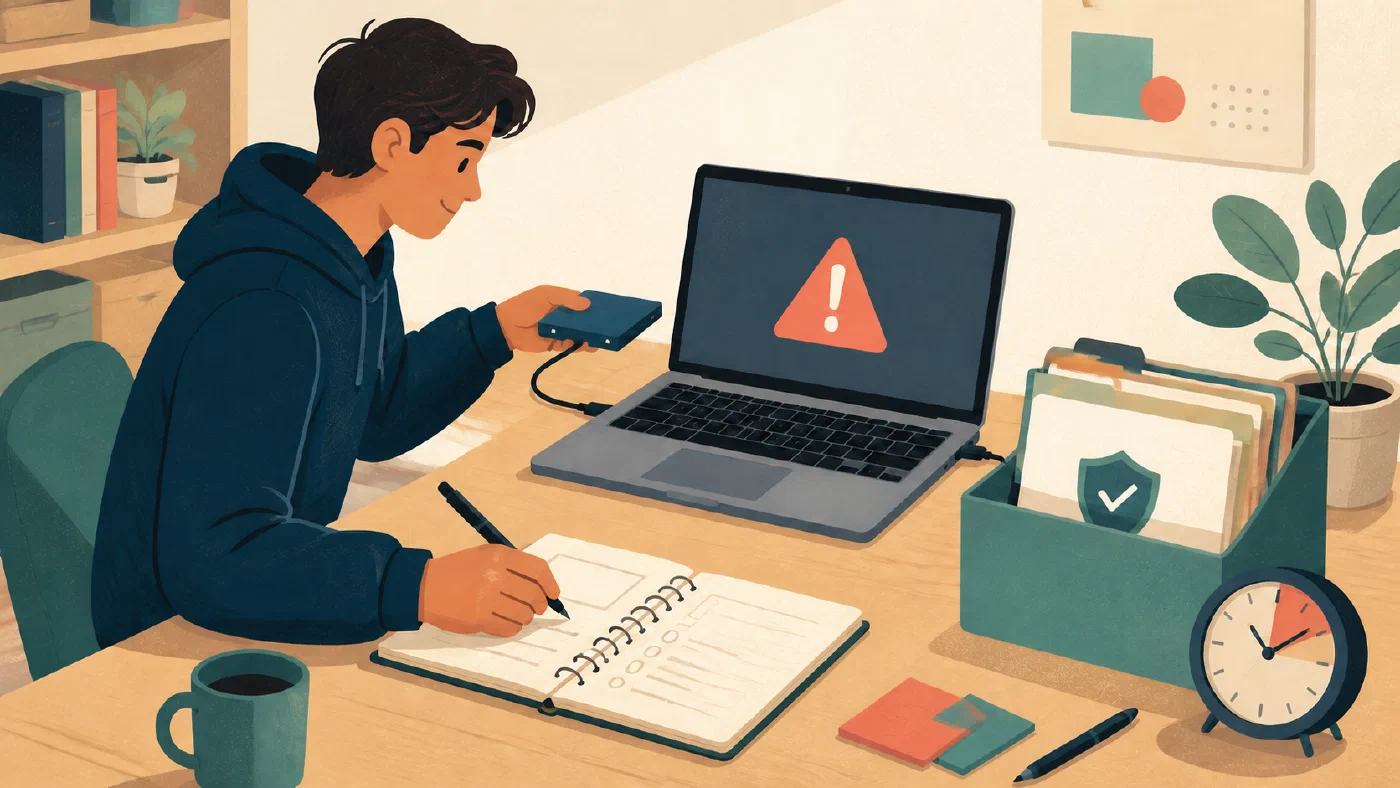
When an assignment file disappears or stops opening, your first job is not to fix it. Your first job is to preserve what still exists and understand the situation well enough to choose a safe next step.
Do not keep editing the only copy. Do not reinstall software because one file failed. Do not run a destructive command because an AI assistant suggested it. Make a protected copy, write down the facts, and work from the copy.
This is a triage protocol, not a promise that every file can be recovered. It gives you a way to reduce further damage while you find out whether the work is still in the working folder, a Git history, a backup, an editor history, or another authorized copy.
First, stop changing the original
If the file or project is still open, save only if you know that saving will preserve the state you want. Otherwise pause. Do not rename, move, overwrite, reinstall, reset, clean, or “repair” the original until you have recorded its current state.
If the device is showing signs of physical failure—repeated disk errors, unusual noises, overheating, or sudden shutdowns—stop using it and seek qualified support. Repeated attempts can reduce the chance of a later recovery.
For an ordinary software or file problem, make a copy of the containing folder if the device still allows it. Give the copy a name that records the incident, such as:
course-project-incident-copy-2026-08-19/
If the project is a Git repository, do not start by changing branches or rewriting history. Copy the repository or work from a separate clone when possible. The original state is evidence.
Make the copy from the parent folder
Run the copy from the folder that contains the project, and choose a destination that does not already exist. A new destination makes it harder to overwrite a useful comparison copy by accident. On macOS or Linux, a recursive archive-style copy is:
cp -a ./course-project ./course-project-incident-copy-2026-08-28
If you need one portable file to preserve the folder, create a compressed archive:
tar -czf ./course-project-incident-copy-2026-08-28.tar.gz -C . course-project
The cp -a form copies a directory tree while preserving archive attributes where the platform supports them; tar -czf creates a gzip-compressed archive. These commands preserve the source, but they do not prove that the destination is readable. List the archive or extract it into a new folder before relying on it.
In PowerShell, use an explicitly new destination and do not add -Force during the first preservation step:
Copy-Item -LiteralPath .\course-project -Destination .\course-project-incident-copy-2026-08-28 -Recurse
-Recurse copies the directory tree. If the destination already exists, stop and choose a different incident name rather than merging into it. On any platform, do not put the first recovery copy inside the damaged project or inside a folder that is actively propagating changes.
Treat synchronization as a possible source of damage
If a cloud-sync client is active for the project, pause or suspend synchronization using its documented control before making recovery edits. A deletion, bad rename, or corrupted save may propagate to other synchronized locations; retention and version-history behavior vary by provider. Preserve a local copy in a separately named, non-synchronized location first, then inspect the provider’s recovery history from that protected state.
Do not reconnect a recovery copy to the original synchronized path merely to see whether it “looks right.” First compare the copy with the known symptoms and record which version you intend to keep. Synchronization can help you reach a current copy, but it is not automatically a tested backup.
Record the situation in one short log
Open a working log outside the damaged project if you can. Record:
# Technical incident

Date and time:
Course and assignment:
Submission deadline:
Last known good state:
What I expected:
What I observed:
What changed immediately before the problem:
Copies, backups, repositories, or histories available:
Current safest next action:
Describe observations, not conclusions. “The editor reports that the file is unreadable” is an observation. “The hard drive destroyed the file” is a diagnosis that requires evidence.
Record the exact error text when possible. Also record the application, operating system, current folder, and the time of the last known good copy. Redact usernames, private paths, access tokens, course records, and other sensitive information before sharing the log.
The working-log article explains the larger habit. In this situation, the log is also a recovery tool: it keeps stress from turning each new attempt into an untraceable change.
Classify the problem before choosing a fix
Ask which of these descriptions fits the evidence:
| Situation | What it may mean | Safe first check |
|---|---|---|
| The file is present but will not open | The application, format, permissions, or file contents may be involved | Copy the file, then try an appropriate viewer or a known-good application |
| The file is missing from the expected folder | It may have been moved, renamed, deleted, or saved elsewhere | Search without changing files; inspect recent locations and history |
| Recent edits are missing | The wrong copy may be open, edits may not have been saved, or a history may exist elsewhere | Identify the open path and last known good timestamp |
| The whole project behaves differently | A dependency, environment, branch, or configuration may have changed | Record versions and current state before reinstalling anything |
| The device itself is unstable | The storage or operating environment may be failing | Stop repeated writes and seek support or a verified backup path |
This classification does not prove a cause. It only prevents you from applying a recovery method that can make the situation worse.
A short triage example
Suppose Maya is submitting a data-analysis project tonight. The editor still shows the project folder, but report.md will not open and the last saved chart appears to be missing. She first closes the editor without saving, checks whether the folder is in a synchronized location, and pauses that sync. From the parent folder she creates analysis-incident-copy-2026-08-28, records the exact error, and writes down that the chart was present at 6:40 p.m.
She does not reinstall the editor or delete files that look temporary. She searches the protected copy and the known submission folder, then checks Git history and editor history separately. If one candidate contains the chart, she opens it in a new recovery folder and compares it with the incident log. If no candidate is usable before the deadline, she sends the instructor a factual message while the search continues. Each step produces evidence and leaves the original available for another authorized recovery attempt.
Make a recovery inventory
List every place that might contain a copy, then mark whether you can inspect it safely:
- the current working folder;
- another local folder or filename;
- a Git commit, branch, tag, stash, or remote;
- editor local history;
- a tested backup;
- a synchronized folder, if synchronization is not propagating the damage;
- an exported submission file or attachment; and
- an authorized copy held by a teammate.
Synchronization is not automatically a backup. If a deletion or corruption is being synchronized, pause and understand that system before reconnecting or making more changes. The backup restoration article explains why a successful backup or sync status is not the same as a tested restoration.
Choose one low-risk next action
Use this order:
- Preserve the original and the incident evidence.
- Inspect a copy or read-only history.
- Restore a candidate version into a new location.
- Compare the candidate with what you expected.
- Only then decide whether to replace, merge, or submit anything.
If Git may contain the work, continue with Recovering Git History and Lost Code. If the deadline is close and the risk is material, prepare the factual message described in Communicating with Instructors During a Technical Crisis. You can communicate while recovery continues; you do not need to wait until you know the final outcome.
What not to do yet
Avoid these actions until you have a protected copy and a reasoned recovery plan:
- deleting temporary or “duplicate” files;
- reinstalling the editor, runtime, or operating system;
- running recursive cleanup commands;
- resetting or force-pushing a repository;
- accepting an AI-generated diagnosis without testing it;
- opening a private project in a public support forum; and
- telling someone that work is permanently lost after only one failed search.
The inspect-before-you-change article provides the general safety principle. During a crisis, “inspect” includes preserving the state before inspection changes it.
Do this now
In a disposable folder, create a small Markdown file and an intentionally damaged copy. Practice the first five actions:
- Stop changing the original.
- Make an incident copy.
- Record the exact symptom.
- List possible recovery sources.
- Choose one read-only inspection.
Do not use real coursework or your only copy. The goal is to rehearse the order of operations before the deadline makes every action feel urgent.
Log what you learned
Record the incident’s starting state, the first safe copy you made, the symptom you can support with evidence, and the next recovery source you will inspect. If the deadline is at risk, record when you contacted the instructor and what you requested.