
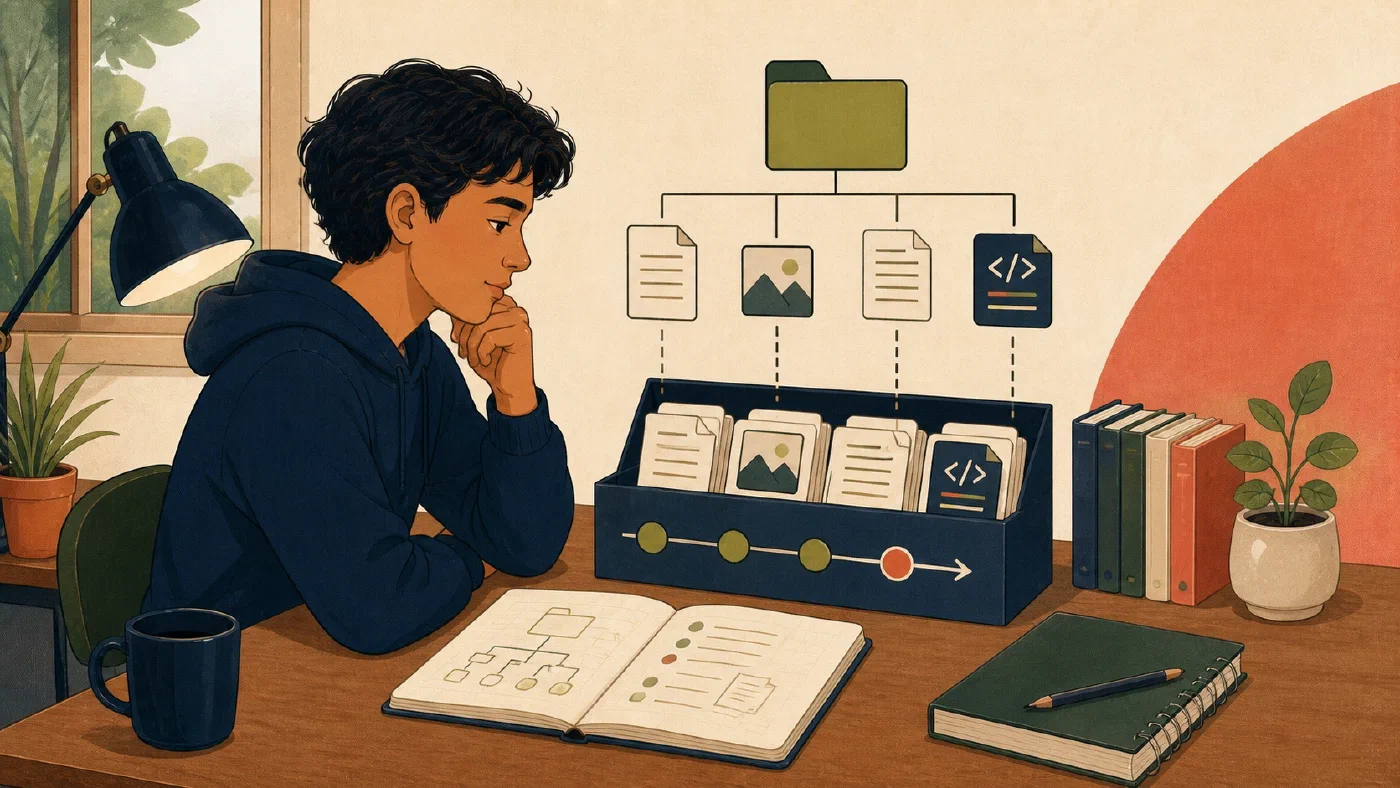
Git is a version-control tool that records selected project snapshots locally. It appears in this path because a course or project may use that history to inspect and explain changes. Git does not watch every file on the computer or save every keystroke. In one repository, Git compares the working tree, the staging area, and committed snapshots. You decide which file content enters the proposed next snapshot and when that snapshot becomes history.
A repository has several related states
Use this model:
working tree  --git add-->  staging area  --git commit-->  history
     |                           |                           |
files you edit            proposed snapshot          recorded snapshots
The Git repository stores history and related metadata. A normal project
usually has a working tree containing checked-out files plus a .git
directory containing repository data.
The official Git
documentation describes the .git directory’s
object database, index, and references. The Pro Git data
model explains
commits as snapshots.
The working tree contains the files you can edit
The working tree is the checked-out project content on disk, including local changes not yet committed.
When you edit README.md, you change the working-tree file. Git does not alter
the previous commit. It can compare the current content with staged or committed
content.
The working tree can also contain:
- files Git already tracks;
- new untracked files;
- ignored files;
- generated output; and
- files that should never be recorded, such as secrets.
Presence in the project folder does not mean presence in history.
The staging area is the proposed next snapshot
The staging area, also called the index, records the content selected for the
next commit. git add copies the current content of a path into that proposed
snapshot.
This creates an important possibility:
- Edit a file.
- Stage it.
- Edit it again.
The staged version and working-tree version now differ. A future commit records the staged content, not automatically the later unstaged edit.
Git’s user manual describes the index as the information needed to generate one tree object and as a temporary staging area.
Staging is not a permanent backup. Until committed, the proposed snapshot is not part of ordinary project history.
A commit records a snapshot and context
A commit records a project snapshot from the staging area, connects it to parent history, and includes metadata such as author, time, and message.
A commit does not necessarily include:
- untracked files you never added;
- ignored files;
- unstaged changes made after staging;
- files outside the repository; or
- remote copies of the commit.
Committing and pushing are different operations. A commit records local history. Pushing transfers selected repository history to a remote according to the configured relationship.
Four beginner states
| State | Meaning |
|---|---|
| Untracked | The working-tree path is not represented in the current tracked set |
| Modified | A tracked working-tree file differs from the relevant recorded state |
| Staged | Content is selected in the index for the next commit |
| Committed | A snapshot containing that content exists in repository history |
A file can be staged and then modified again, so part of its content is staged while newer changes remain only in the working tree.
Post 35 explains how git status and git diff reveal these relationships.
What Git tracks
At a beginner level, think of Git as tracking snapshots of file content and project paths selected for history. It also records limited file modes and repository metadata needed to construct the project history.
Git does not directly track:
- empty directories;
- arbitrary filesystem timestamps as project history;
- application state outside the repository;
- every copy stored by a synchronization service;
- whether an assignment was submitted; or
- why a change is correct.
The commit message and project documentation supply human explanation. Verification comes from tests and inspection.
Ignored is different from untracked
Ignore rules tell Git which untracked paths it should normally avoid presenting for addition. They are useful for generated output, caches, local environments, and machine-specific files when the project defines those exclusions.
Ignore rules do not remove a file that Git already tracks. They also do not protect a secret after it has been committed.
Use the project’s existing ignore rules and course guidance. Do not add a file
to .gitignore merely to make an unexplained status line disappear.
Observe each state in a tiny repository
Use a new disposable folder that is not inside another repository:
git-practice/
Check your current directory, then run:
git init
Create study-plan.md:
# Study plan

- Review functions
Observe the untracked state:
git status
Stage the file and observe again:
git add study-plan.md
git status
Commit it. If your normal Git identity is not configured, this practice command supplies temporary example identity values without changing global settings:
git -c user.name="Practice Student" -c user.email="practice@example.invalid" commit -m "Add study plan"
Now edit the file:
# Study plan

- Review functions
- Complete two practice problems
Run git status again. Stage the change, then add a third line without staging
it. Observe that Git reports both staged and unstaged change states for the same
path.
Do not use this exercise in an active course repository. Do not add personal data or credentials.
Predict before each command
Before git add, say which content should enter the staging area. Before
git commit, say which staged snapshot should enter history. After each
command, use git status to test the prediction.
If the result differs:
- stop;
- keep the output;
- identify the repository root;
- inspect which paths are involved; and
- ask the command’s official help before changing state again.
This turns Git from a memorized command sequence into an observable model.
Common mistakes
- Assuming every file in the folder is tracked.
- Treating
git addas saving permanently to history. - Assuming a commit includes unstaged changes.
- Confusing commit with push.
- Using
.gitignoreto conceal files that are already tracked. - Initializing a repository inside another repository unintentionally.
- Committing generated files, large data, or secrets without reviewing scope.
- Treating Git as a whole-device backup.
Do this now
Complete the tiny-repository exercise. Draw three boxes for working tree,
staging area, and history. After every command, mark where the current content
of study-plan.md exists.
Log what you learned
Record only:
- Result: What did the action produce?
- Evidence: What observation, test, or source supports that result?
- Next action or unresolved question: What should happen next?