
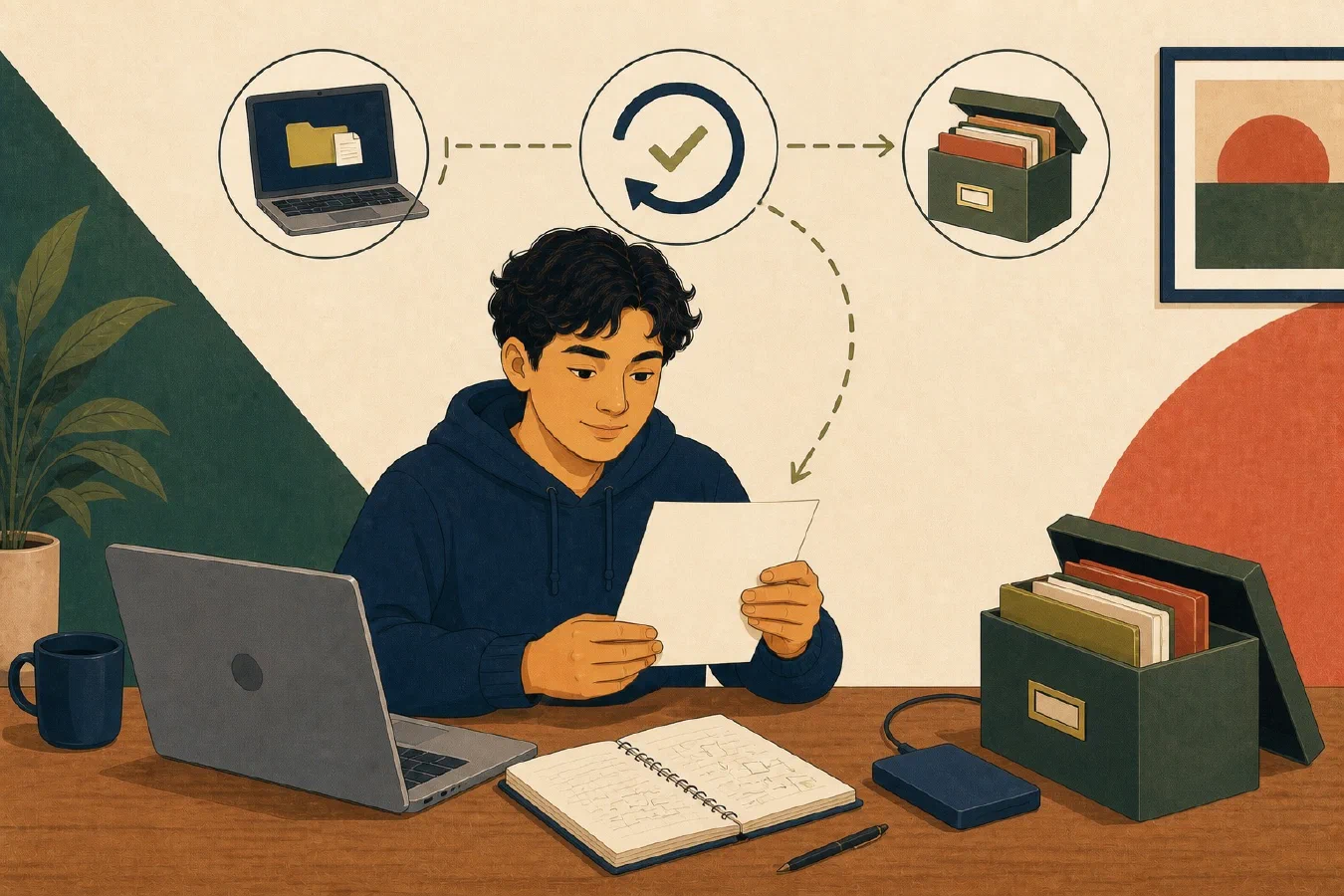
A backup should answer a practical question: can you recover the needed data when the original is unavailable? The smallest useful proof is a restoration test. Restore one harmless file to a different location, open it, compare it with the source, and record what happened.
A successful backup job is not yet a successful recovery
A status message can show that a backup process ran. It does not prove that:
- the needed folder was included;
- the saved copy is recent enough;
- you can access the destination from another device;
- the file can be restored without overwriting the original;
- the restored contents are intact; or
- required accounts, passwords, and recovery information are available.
NIST guidance treats creating backups, testing them, and reviewing them during recovery exercises as connected parts of backup management. Although NIST SP 1339 addresses operational technology, that separation between creation and tested recovery applies directly to this small student exercise.
Run a safe one-file restoration test
Use a non-sensitive test file. Do not begin with the only copy of an assignment or with a full-device restoration.
1. Create an identifiable source file
Create a plain-text file named restore-test-2026-07-24.txt containing:
Backup restoration test
Created: 2026-07-24
Expected line count: 3
Marker: maple-27
The marker gives you a specific value to verify. Do not use a password or other secret as the marker.
2. Let the normal backup process capture it
Place the file inside a folder that your backup plan is supposed to protect. Run the normal backup process or wait for its documented schedule. Confirm that the backup reports a successful operation.
Record the source path and the time. This distinguishes “the process ran” from “this particular file was eligible to be copied.”
3. Restore to a different location
Use the backup system’s restoration function. Restore the file into a new folder, such as:
restore-test-output/
Do not restore over the source file. A separate location lets you compare the two copies and prevents the test from damaging the original.
4. Verify the restored result
Open the restored file and confirm:
- the filename is correct;
- all three lines are present;
- the marker is exactly
maple-27; - the file opens in an ordinary text editor; and
- the source and restored contents match.
If you know how to compute hashes, matching cryptographic hashes provide an additional comparison. They do not replace opening the file and confirming that you restored the intended object.
5. Record evidence
Use a short record:
# Restoration test

- Date:
- Backup system:
- Source path:
- Restore destination:
- Backup copy timestamp:
- Restore start and finish:
- Content checks:
- Result: pass / fail / partial
- Problems observed:
- Next action:
Delete the test files later if they are no longer useful, but keep the non-sensitive result in your working log.
Test access, not just file contents
A lost-device scenario changes the starting conditions. You may not have:
- the original laptop;
- an already authenticated browser;
- the usual password manager session;
- a hardware security key stored in the same bag;
- the backup application’s local configuration; or
- the encryption recovery key.
Write down how you would reach the backup from another trusted device. Verify that account recovery methods are current without exposing them in your notes. For an institution-managed device or account, follow the institution’s process rather than trying to bypass it.
Keep recovery keys separate and protected
Encrypted storage may require recovery information when normal unlocking fails. Microsoft states that it cannot recreate a lost BitLocker recovery key and advises verifying that a key backup is accessible. It also warns against keeping a removable or printed key with the computer. See Microsoft’s BitLocker recovery-key guidance.
Apple similarly advises keeping a FileVault recovery key somewhere other than the encrypted startup disk and not with the Mac. See Apple’s FileVault recovery-key guidance.
Do not copy a recovery key into a project repository, ordinary working log, email draft, or public note. Record only that a key exists, who controls it, and when access was last verified.
Add a semester-end archive
A semester-end archive preserves a stable academic snapshot after active sync and daily work have moved on.
For each completed course:
- remove unnecessary caches and regenerable build output;
- retain source files, submitted work, feedback, notes, and required data;
- export material that depends on a course platform when policy permits;
- include a short
README.mddescribing the course and folder structure; - create the archive in a documented format and location;
- include it in the normal backup process; and
- restore and inspect at least one representative file.
Follow course, institutional, privacy, and licensing rules. Do not archive other students’ private data or material you are not permitted to retain.
When the test fails
A failed test is useful evidence. Do not conceal it by changing the record to “backup complete.”
Classify the failure:
- Scope failure: the file was never included.
- Timing failure: the available copy was too old.
- Access failure: the account, device, or key was unavailable.
- Restore failure: the system could not produce the file.
- Integrity failure: the file opened incorrectly or did not match.
- Documentation failure: the correct steps could not be identified.
Fix one cause at a time, run the test again, and record the new result.
Common mistakes
- Restoring over the only source copy.
- Testing with sensitive data.
- Checking only that a backup job reported success.
- Storing recovery keys beside the encrypted device.
- Assuming a synchronized folder contains a recoverable history.
- Waiting for an emergency to learn the restoration interface.
- Keeping archives without checking that their formats still open.
Do this now
Complete the one-file restoration test. Mark it pass, fail, or partial.
For a pass, require both a successful restore and a content comparison. For a
failure or partial result, record the exact next action and repeat the test after
the change.
Log what you learned
Record only:
- Result: What did the action produce?
- Evidence: What observation, test, or source supports that result?
- Next action or unresolved question: What should happen next?