
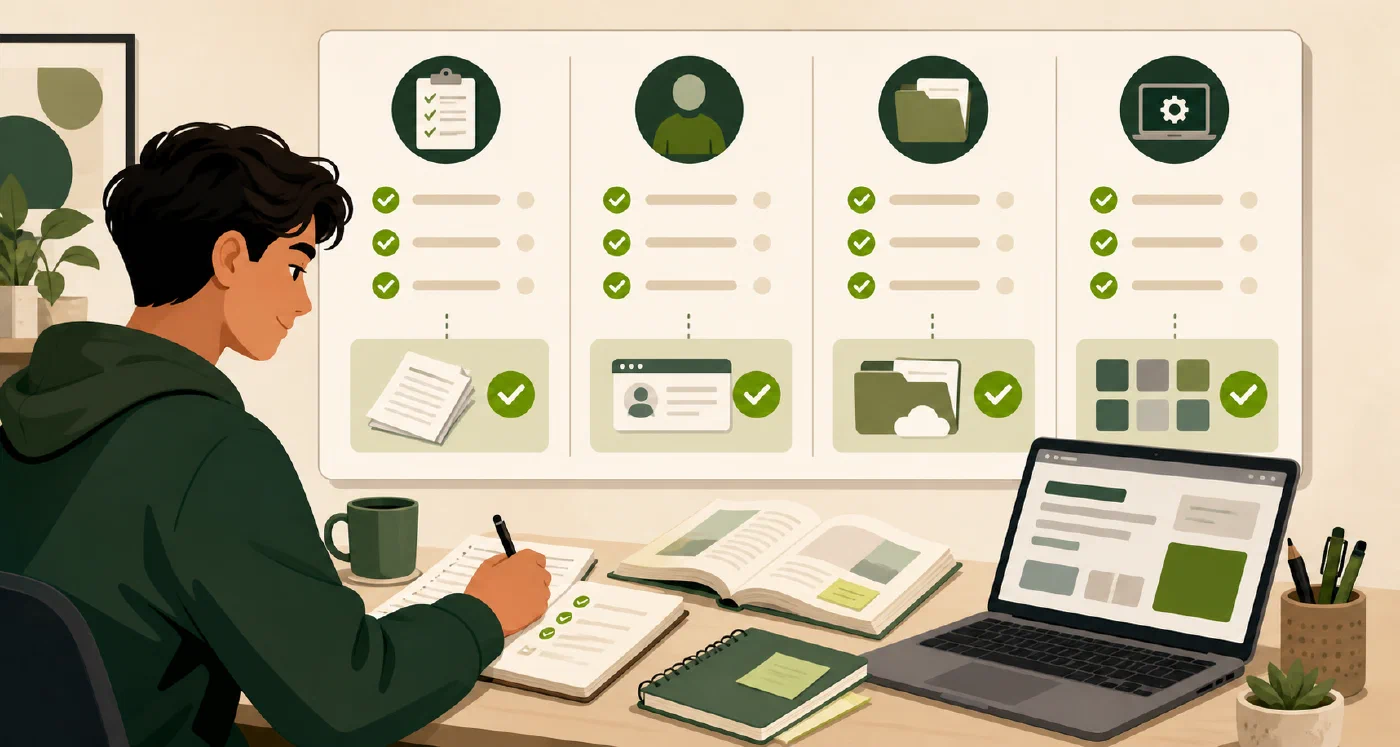
Run a short readiness audit before the first day of a course. Check access, source materials, required tools and accounts, submission locations, and a recovery or support route. Record evidence and mark unknowns. Do not install everything that looks useful; install or configure only what the course evidence requires.
Why this matters
The first deadline is a poor time to discover that a student cannot access the LMS, does not have a required compiler, has no writable course folder, or cannot recover an account. A readiness audit turns a vague feeling of preparedness into a starting-state record.
The audit cannot predict every course problem. Its purpose is to find obvious gaps while there is still time to contact an instructor, teaching assistant, institutional support desk, or tool owner.
The central idea: evidence before action
Use four areas and five first-pass prompts:
- Course access: Can I open the current course page and syllabus?
- Files: Do I know where source materials, notes, assignments, and submissions belong?
- Tools and accounts: Which named tools or accounts does the course actually require?
- Recovery and communication: If access or software fails, where is the authorized help route and what evidence should I provide?
- Next gap: What is the one unresolved item that should be handled first?
For each prompt, use verified, unknown, not applicable, or return later.
The state prevents an unchecked assumption from looking like a completed task.
Walkthrough
1. Start with one course
Use the syllabus register and the current course portal. Do not attempt a semester-wide inventory before you know what one course requires. Keep the audit in an authorized location and avoid screenshots that reveal student identifiers or private course data.
2. Record the first pass
Create a file such as semester-start-readiness.md. Use a heading such as
Readiness check — [item] for each check and answer in a short paragraph:
what state you found, what evidence supports it, and what next action is needed.
Use verified, unknown, check, or return later explicitly; do not fill in
a Markdown audit table.
# CS-101 readiness audit

Checked: 2026-08-24

## Readiness check — course page and syllabus

State: verified
Evidence: portal page and local PDF
Next action: none

## Readiness check — course workspace

State: verified
Evidence: Education/2026-Fall/CS-101
Next action: test retrieval

## Readiness check — required tools

State: unknown
Evidence: syllabus names a compiler; version unclear
Next action: ask or check the course page

## Readiness check — submission path

State: check
Evidence: assignment page not yet open
Next action: open the first assignment

## Readiness check — recovery/contact route

State: return later
Evidence: support link not tested
Next action: save an authorized contact
An evidence note should be specific enough for you to repeat the check. “Looks fine” is not evidence. “Opened the course page, downloaded the current syllabus, and created the course folder” is a reproducible observation.
3. Verify access and submission paths
Open the course page, current syllabus, first assignment description, and any named submission location. Do not submit a test file unless the course allows it. If the course uses a portal or repository, record the location and the condition that makes it authoritative.
If a portal displays private information, keep that information out of public notes, screenshots, repositories, and AI prompts. The Department of Education privacy guidance describes direct and indirect identifiers in education records; your school may also impose stricter handling rules.
4. Identify tools without installing extras
Read the syllabus and first assignment for named runtimes, compilers, editors, package managers, file formats, or accounts. Then use Install Only What the Course Requires to derive a course-compatible installation list.
Record version and verification requirements only when the course states them
or the tool’s official documentation makes them necessary. If the requirement
is unclear, mark it unknown and ask the course contact. Do not turn a
readiness audit into a shopping list.
5. Check recovery and communication
Record where to ask for help, what hours or response expectations the course states, and what non-sensitive evidence you can provide: an error message, course section, file path, or timestamp. Never put passwords, tokens, recovery codes, or private student records in the audit.
The recovery route is part of readiness because a student who knows how to report a problem can preserve time and evidence instead of repeatedly changing the system without a record.
6. Stop at the smallest useful result
The first pass is complete when you have one course, five states, one next gap, and enough evidence to repeat the checks. Later, add another course or a platform-specific setup only when a real requirement justifies it.
Common mistakes
- Confusing access with readiness. Opening the LMS does not prove that the first assignment or submission path works.
- Installing before reading the requirement. Extra tools create conflicts and maintenance work.
- Treating unknown as verified. Keep the uncertainty visible and name the resolver.
- Collecting private screenshots. Store only the evidence you are allowed to retain and share.
- Auditing everything at once. One course provides a useful first pass.
Do this now
Run the five-prompt audit for one course. Resolve one unknown or check item,
record the evidence, and stop. Leave the remaining items visible for the next
authorized action.
Log what you learned
Record:
- Result: Which readiness gap did the audit expose?
- Evidence: What did you open, test, or record?
- Next action or unresolved question: Who or what can resolve the remaining gap?