
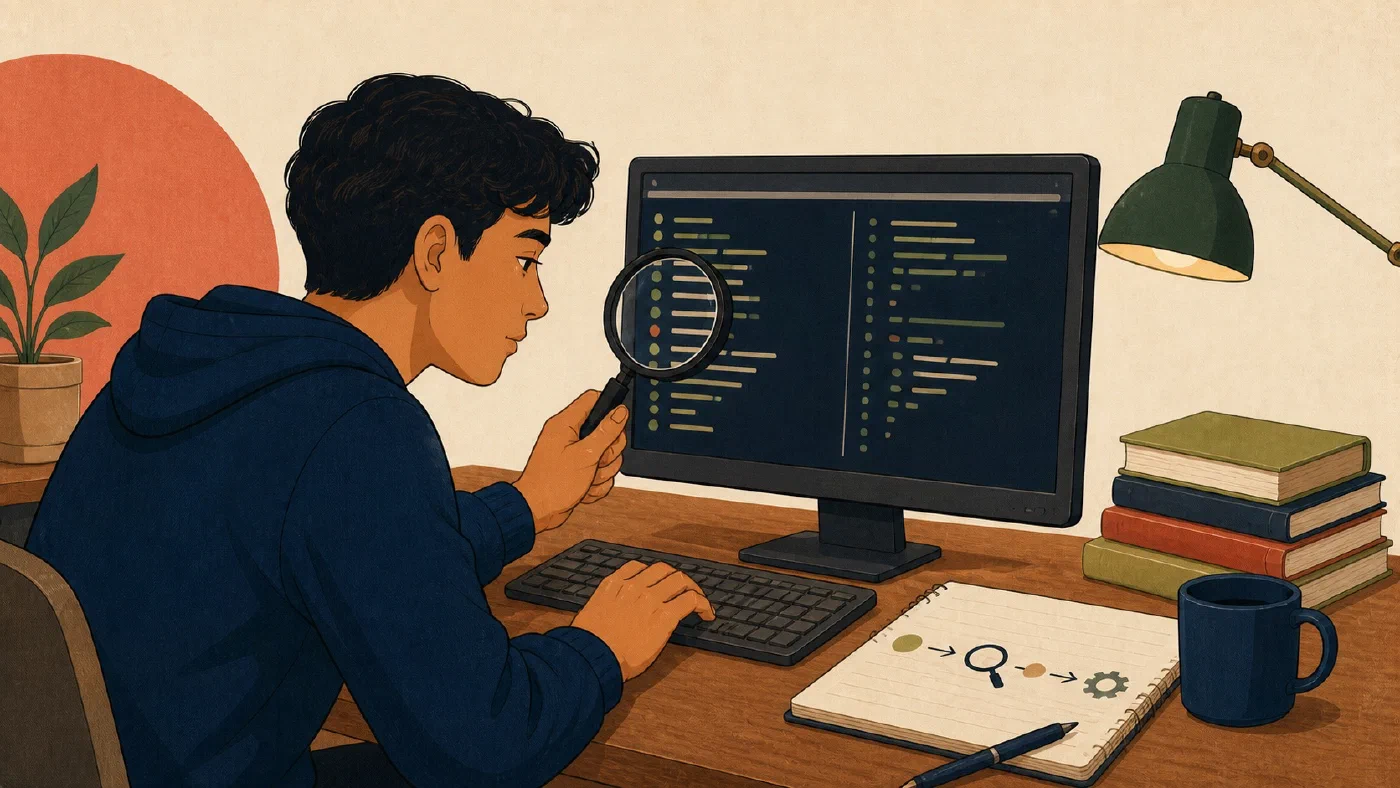
Before a command changes files, configuration, or project state, use read-only operations to establish what exists. State the expected result, make one small change, and inspect again.
This inspect–change–verify sequence turns command-line work into an observable experiment. It complements rollback planning: inspection tells you what changed; a checkpoint gives you a path back.
Ask a state question first
Do not begin with “Which command fixes this?” Begin with a question:
- Which directory am I in?
- Which files match this name?
- What does this configuration currently contain?
- What has changed in this project?
- What would this operation affect?
- Which version of the tool is running?
Then choose a read-only operation that answers that question. Common operation names include:
- status for a summary of current state;
- list for available items;
- show for details about one item;
- diff for differences between states;
- check for validation; and
- preview, dry run, or plan for intended effects.
These are categories, not promises. A subcommand named show is not
automatically harmless. Read the tool’s help and official documentation.
Define a narrow scope
Inspection becomes useful when its scope matches the task. Record:
Objective: Update the heading in notes.md
Working directory: practice-project
Target: notes.md
Expected change: one heading line
Expected unchanged state: every other file
This statement gives the after-state something specific to test. “Make the project work” is too broad. “Change the heading from Draft Notes to Week 2 Notes, without changing another file” is observable.
Before a filesystem operation, inspect the resolved target. Relative paths depend on the current directory. Wildcards may match more entries than expected. Recursive operations expand the scope further.
Prefer read-only investigation
Suppose a project behaves differently after editing notes.md. A weak response
is to reinstall a tool or rewrite configuration. A stronger sequence is:
- confirm the current directory;
- list the relevant files;
- display the current file or configuration;
- check project status;
- compare current changes; and
- form one hypothesis.
Investigation does not need to be elaborate. Stop when the evidence is enough to identify the smallest test.
Read-only operations can still expose private data on screen or in logs. Do not display secrets merely because a command does not modify files.
Make one change that tests one idea
Several changes at once destroy information. If you rename a file, edit a path, update a dependency, and change permissions, a successful result does not identify the cause. A failure does not isolate it either.
Write the hypothesis:
The program cannot find
notes.mdbecause the configuration usesnote.md. Correcting that one path should let the program open the existing file.
Then change only that path. If the task is important, follow the reversible change workflow and create an appropriate checkpoint first.
Stop if the command:
- targets a different path;
- requests unexpected administrator access;
- includes unrelated files;
- reports an unfamiliar destructive action; or
- produces output inconsistent with the plan.
Unexpected scope is evidence to investigate, not friction to bypass.
Verify with an independent observation
A zero exit status or “completed” message means the command reports completion. It does not necessarily prove the intended outcome.
Repeat the relevant inspection:
- check status again;
- compare the diff;
- display the resulting file;
- run a focused test;
- count expected records; or
- reopen the application and test the required behavior.
For a Git-tracked practice project, git status reports working-tree status,
while git diff shows changes between
states. They answer different questions.
After editing one heading:
git statusshould name the expected file.git diffshould show the intended line and no unrelated edits.- A Markdown preview should display the intended heading.
No single check proves every property. Together they test scope, content, and rendered behavior.
Use the mini-playbook
Copy this into your working log:
## Inspect–change–verify

Question:
Scope:
Read-only inspection:
Observed starting state:
Expected result:
Checkpoint or rollback:
One change:
After-state inspection:
Verification result:
Decision: keep | reverse | investigate
Example
Question: Does notes.md contain an outdated title?
Scope: practice-project/notes.md
Read-only inspection: display file and check project status
Observed starting state: title is "# Draft Notes"; tree is otherwise clean
Expected result: title becomes "# Week 2 Notes"; no other file changes
Checkpoint or rollback: Git records the current file
One change: replace the title line
After-state inspection: status and diff
Verification result: one file and one line changed; preview shows Week 2 Notes
Decision: keep
Use commands appropriate to your shell and course environment. The playbook defines the reasoning; platform guides supply exact syntax.
Common mistakes
- Running the proposed fix before describing the state. Inspect first.
- Using a changing command to investigate. Find a read-only operation.
- Treating command names as proof of safety. Confirm behavior in documentation.
- Changing several variables. Test one hypothesis.
- Checking only the command message. Verify the actual artifact or behavior.
- Ignoring unrelated differences. Explain them before continuing.
- Recording no scope. Name the directory, file, project, or resource.
Do this now
In a disposable Git practice project, choose one Markdown file. Complete the mini-playbook, change one line, inspect status and diff, and preview the file. Reverse the edit if any unrelated change appears.
Log what you learned
Record only:
- Result: What did the action produce?
- Evidence: What observation, test, or source supports that result?
- Next action or unresolved question: What should happen next?
Next, learn how pipes and redirection connect the output of one command to another destination.