
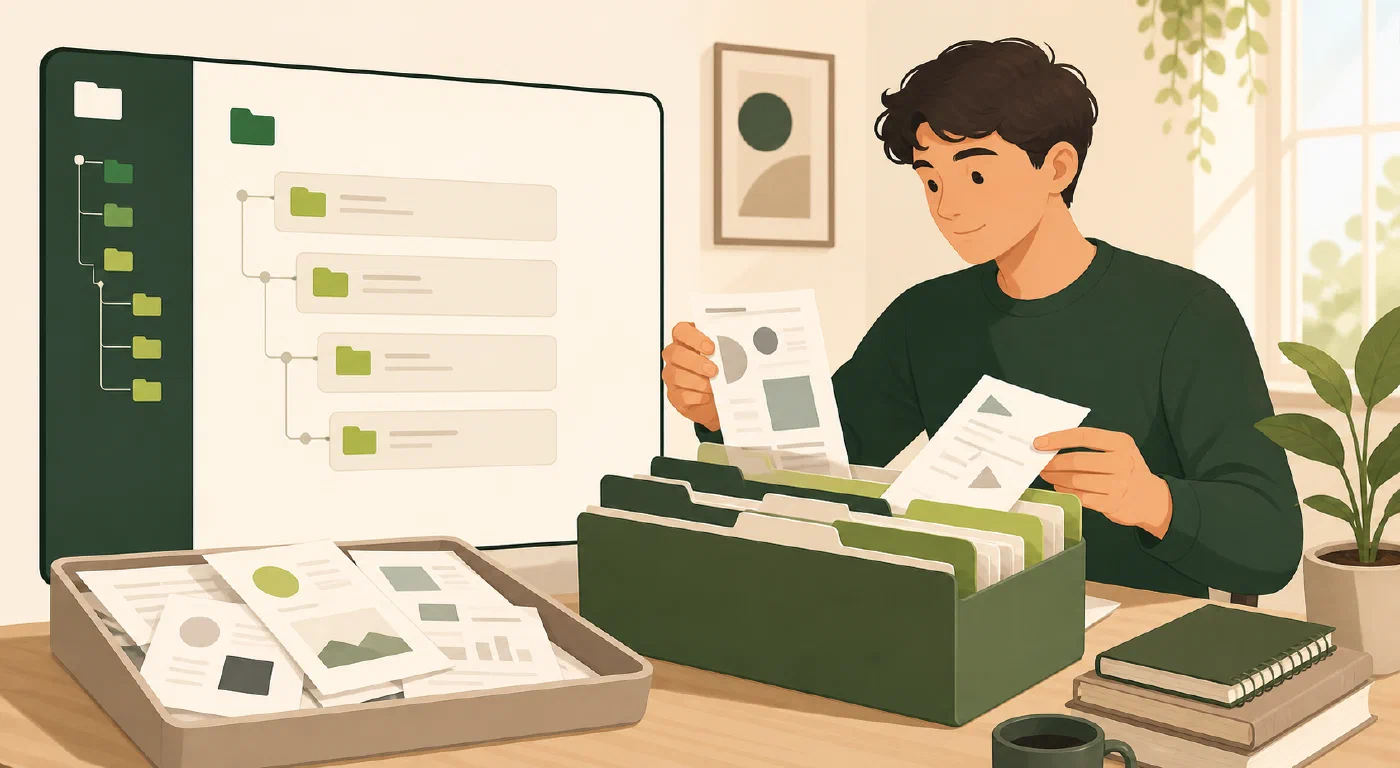
Use Downloads as an inbox, not as your course system. For each item, identify the course and responsibility, move it to one canonical location, and verify that the copy opens before deleting anything. Keep the syllabus register and other source-linked records close to the course information they describe.
Why this matters
An LMS is useful for delivery, but browser history and a downloads folder are
poor long-term indexes. A file named document (7).pdf does not tell you which
course it belongs to, whether it is current, or where its related notes live.
The fix is not a giant directory tree. It is a stable course boundary and a short routing routine.
The central idea: one course, one canonical workspace
Start from the durable academic structure in A College Folder Structure That Can Survive Four Years, then make only the folders your current course needs:
Education/
└── 2026-Fall/
    └── CS-101-intro-programming/
        ├── course-info/
        │   ├── syllabus.pdf
        │   └── syllabus-register.md
        ├── notes/
        ├── assignments/
        └── projects/
The top-level structure answers where a course belongs. The course workspace answers what kind of item you are handling now.
Walkthrough
1. Create the smallest useful boundary
Make the course folder and begin with course-info, notes, and
assignments. Add projects only when a project needs its own execution
boundary. Do not create folders for every file type; a course is not organized
by whether a file came from Word, PDF, or PowerPoint.
2. Treat Downloads as a queue
For each new file:
- Open it safely and identify the course or process that owns it.
- Compare its title, date, and version with the source page.
- Rename it only when course rules permit and the new name preserves meaning.
- Move it to the canonical course folder.
- Open the moved copy and confirm that it is the expected file.
- Remove the temporary download only after the move is verified.
For example:
Downloads/document (7).pdf
→ Education/2026-Fall/CS-101-intro-programming/course-info/
  CS-101-syllabus-2026-08-24.pdf
If the source is revised, preserve the earlier copy until you understand which version applies. A date in a filename is a record of the file you received, not proof that it is the current course rule.
3. Keep notes near the course, not inside the LMS inbox
Course notes can be Markdown, a notebook, or another format that fits the work. The location should make the course context obvious. Link or refer to the source material instead of copying an entire handout into every note.
Use a small note header when it helps:
# Week 2 — variables and functions

Course: CS-101
Source: lecture slides, week 2
Captured: 2026-08-31
Open question: Why does the example return an empty list?
This preserves enough context to verify the note later without turning every note into a report.
4. Protect private course material
Course files may include student identifiers, grades, accommodations, or other information that should not be shared. The U.S. Department of Education’s privacy guidance explains that education-record information can include direct and indirect identifiers. Keep private material in authorized storage, and do not place it in a public repository or upload it to an external AI service without permission.
Organization does not create access control. Check the actual sharing and backup settings of the location you use.
5. Test retrieval with three safe files
Place three fictional or non-sensitive practice files:
- a syllabus in
course-info; - a lecture note in
notes; and - an assignment handout in
assignments.
Close the file manager. Predict each path, navigate to it, and open it. If you guess wrong, change one rule and test again. A retrieval test tells you more than a visually pleasing tree.
Common mistakes
- Organizing by application. A PDF syllabus and Markdown note belong to the same course even though different applications open them.
- Keeping every download. Downloads preserves transfer history, not the course’s canonical structure.
- Overwriting a revised file. Preserve evidence until version and authority are clear.
- Making active duplicates. Choose one location and link to it from other contexts.
- Ignoring privacy. A tidy folder can still be shared too broadly.
Do this now
Create one course folder and route three safe practice files into it. Close the file manager, retrieve all three by predicted path, and record any ambiguity before moving real coursework.
Log what you learned
Record:
- Result: Which files now have one canonical location?
- Evidence: What did the retrieval test and file-open check show?
- Next action or unresolved question: Which file or sharing decision still needs review?