
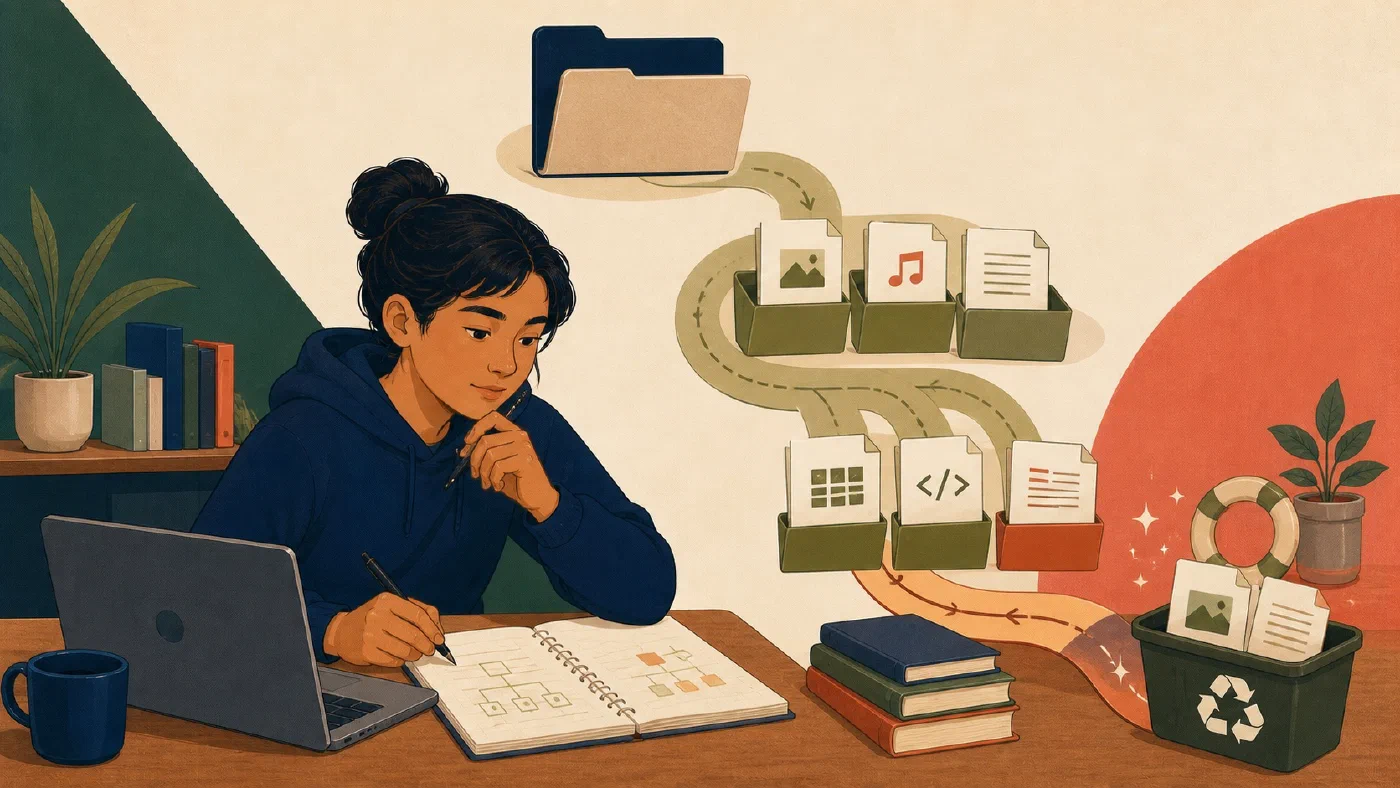
A recent-file list can open a document without showing where it lives. That convenience becomes a problem when a terminal, programming tool, or error message asks for a path.
You need four connected ideas: a file stores an item, a folder organizes items, a path describes a location, and an extension is part of a filename. Once you connect those ideas to the home and current directories, file operations become more predictable.
A file has a name and a location
A file is a named item stored in a filesystem. It may contain text, a program, an image, audio, or application-specific data.
In this path:
course-a/notes/path-practice.md
path-practice.mdis the filename;course-aandnotesare folders, also called directories;- the entire expression is a path; and
.mdis the filename extension.
A folder can contain files and other folders. This nested structure forms a tree. Knowing the tree is more useful than remembering which application last opened a file.
An extension is a naming convention
An extension is a suffix, usually after the last period:
.mdoften identifies Markdown;.pyoften identifies Python source;.csvoften identifies comma-separated values; and.pdfoften identifies a PDF document.
Extensions help operating systems and applications decide how to present or
open a file. They do not prove what the file contains. Renaming
photo.jpg to photo.pdf changes the name, not the encoded data.
Some systems hide familiar extensions in graphical views. Configure your file manager to show them when you need to reason about exact names. Do not experiment by renaming extensions on important work.
A leading period can have a different meaning. On many Unix-like systems, names
such as .gitignore are hidden from ordinary directory listings by convention.
That leading period is part of the name, not an extension in the usual sense.
A path describes how to reach an item
An absolute path begins from a filesystem root or another platform-defined anchor. It identifies a location without depending on your current directory.
Examples:
/Users/student/Education/course-a/notes/path-practice.md
C:\Users\student\Education\course-a\notes\path-practice.md
The first shows common POSIX-style notation. The second shows a Windows path with a drive letter and backslashes. Exact rules differ across platforms. POSIX.1-2024 provides formal definitions of absolute and relative pathnames for POSIX systems.
A relative path starts from a location you already have. If the current
directory is Education, this relative path can identify the same practice
file:
course-a/notes/path-practice.md
Relative paths are convenient inside projects because the whole project can move while internal relationships remain the same.
Home and current are different
Your home directory is the usual personal starting location for your user account. It normally contains folders such as Documents and Downloads, although names and arrangements vary.
The current working directory is the location from which a terminal command or process interprets a relative path. It changes as you navigate.
A path can exist but still produce a “file not found” error when a relative path is interpreted from the wrong current directory. Before changing a command, inspect your location:
pwd
pwd is common in POSIX shells. In PowerShell, use:
Get-Location
Then list the current directory:
ls
or, in PowerShell:
Get-ChildItem
Do not memorize a large command list yet. Learn to ask two questions: “Where am I?” and “What is here?”
Special path components provide context
In many terminal environments:
.means the current directory;..means the parent directory; and~is commonly expanded by a shell to the user’s home directory.
These forms are convenient, but their exact interpretation depends on the shell
and application. A program may not expand ~ merely because a shell does.
Spaces also need attention. A path such as Course Files/essay.md may require
quotes in a command:
"Course Files/essay.md"
Never remove spaces from a path supplied to a destructive command merely to make an error disappear. Inspect the command’s documentation and confirm the target.
Hidden does not mean secret
Graphical file managers and terminal listings may omit some files by default. Applications use hidden items for configuration, metadata, and internal state.
Hidden files are not protected from access, and they are not necessarily safe to delete. Reveal them when troubleshooting requires it, then identify the owner and purpose before changing anything. Privacy and security depend on permissions, encryption, and appropriate handling—not visual concealment.
Locate the same file two ways
Create this practice tree somewhere safe:
computing-practice/
└── course-a/
    └── notes/
        └── path-practice.md
Add one line to the file:
I can identify this file by its name and path.
First use the graphical file manager:
- Open
computing-practice. - Navigate through
course-aandnotes. - Confirm that the visible filename includes
.md. - Use the application’s path or information view to inspect the location.
Then use a terminal:
- Open a terminal in
computing-practice, or navigate there. - Print the current directory.
- List its contents.
- Navigate into
course-a/notes. - Print the current directory again.
- List the file.
- Open it with a safe text viewer or editor you already understand.
Verify that both interfaces lead to the same content. Write down:
- the filename;
- its extension;
- an absolute path;
- a relative path from
computing-practice; and - the current directory from which that relative path works.
Common mistakes
- Confusing an application with a location. “It is in Word” does not say where the document is stored.
- Treating an extension as proof. Inspect content with an appropriate tool.
- Using a relative path from the wrong directory. Check the current directory first.
- Assuming every platform uses the same separators. Keep the concept stable and learn the local notation.
- Deleting hidden files during cleanup. Identify their purpose first.
- Working permanently from Downloads. Move deliberate work into an understandable academic or project location.
Do this now
Complete the two-interface exercise. Close the file and find it again using only your recorded relative path. Then start from a different directory and explain why that same relative path no longer works.
Log what you learned
Record only:
- Result: What did the action produce?
- Evidence: What observation, test, or source supports that result?
- Next action or unresolved question: What should happen next?
Next, use this filesystem model to create a simple college folder structure that can grow without becoming a second course to maintain.